Google Cloud Logging
Introduction
Google Cloud Logging is the log management service of the Google Cloud Platform. FlowG can write its log records to it, so they can be explored, alerted on, and exported alongside the rest of your Google Cloud telemetry.
Setting up Google Cloud Logging
FlowG authenticates to the Cloud Logging API with a Service Account key, in JSON format.
First, enable the Cloud Logging API on your project:
gcloud services enable logging.googleapis.com --project my-project
Then, create a service account for FlowG:
gcloud iam service-accounts create flowg \
  --display-name "FlowG" \
  --project my-project
Grant it the "Logs Writer" role, which is the only permission needed to write log entries:
gcloud projects add-iam-policy-binding my-project \
  --member "serviceAccount:flowg@my-project.iam.gserviceaccount.com" \
  --role "roles/logging.logWriter"
Finally, create a key for that service account:
gcloud iam service-accounts keys create flowg-key.json \
  --iam-account flowg@my-project.iam.gserviceaccount.com
The flowg-key.json file contains the credentials FlowG expects:
{
  "type": "service_account",
  "project_id": "my-project",
  "private_key_id": "...",
  "private_key": "-----BEGIN PRIVATE KEY-----\n...\n-----END PRIVATE KEY-----\n",
  "client_email": "flowg@my-project.iam.gserviceaccount.com",
  "client_id": "...",
  "auth_uri": "https://accounts.google.com/o/oauth2/auth",
  "token_uri": "https://oauth2.googleapis.com/token",
  "auth_provider_x509_cert_url": "https://www.googleapis.com/oauth2/v1/certs",
  "client_x509_cert_url": "https://www.googleapis.com/robot/v1/metadata/x509/flowg%40my-project.iam.gserviceaccount.com",
  "universe_domain": "googleapis.com"
}
The same can be done from the Google Cloud Console: create a service account, grant it the "Logs Writer" role, then in its "Keys" tab, choose "Add key" > "Create new key" > "JSON".
Setting up the FlowG pipeline
First, let's create a "Google Cloud Logging Forwarder" named gcloud, with the
following configuration:
Allow Insecure Connection?Disables TLS. Only useful when targeting a local emulator.Disable Authentication?Only useful when targeting a local emulator.
Then, create a pipeline that forwards logs received via Syslog to the gcloud
forwarder:
And that's it!
Testing
You can test the setup by sending a log to the pipeline using the logger
command:
logger -n localhost -P 5514 -t myapp1 'hello world'
You can then find your logs in the Logs Explorer, using the following query:
logName="projects/my-project/logs/flowg"
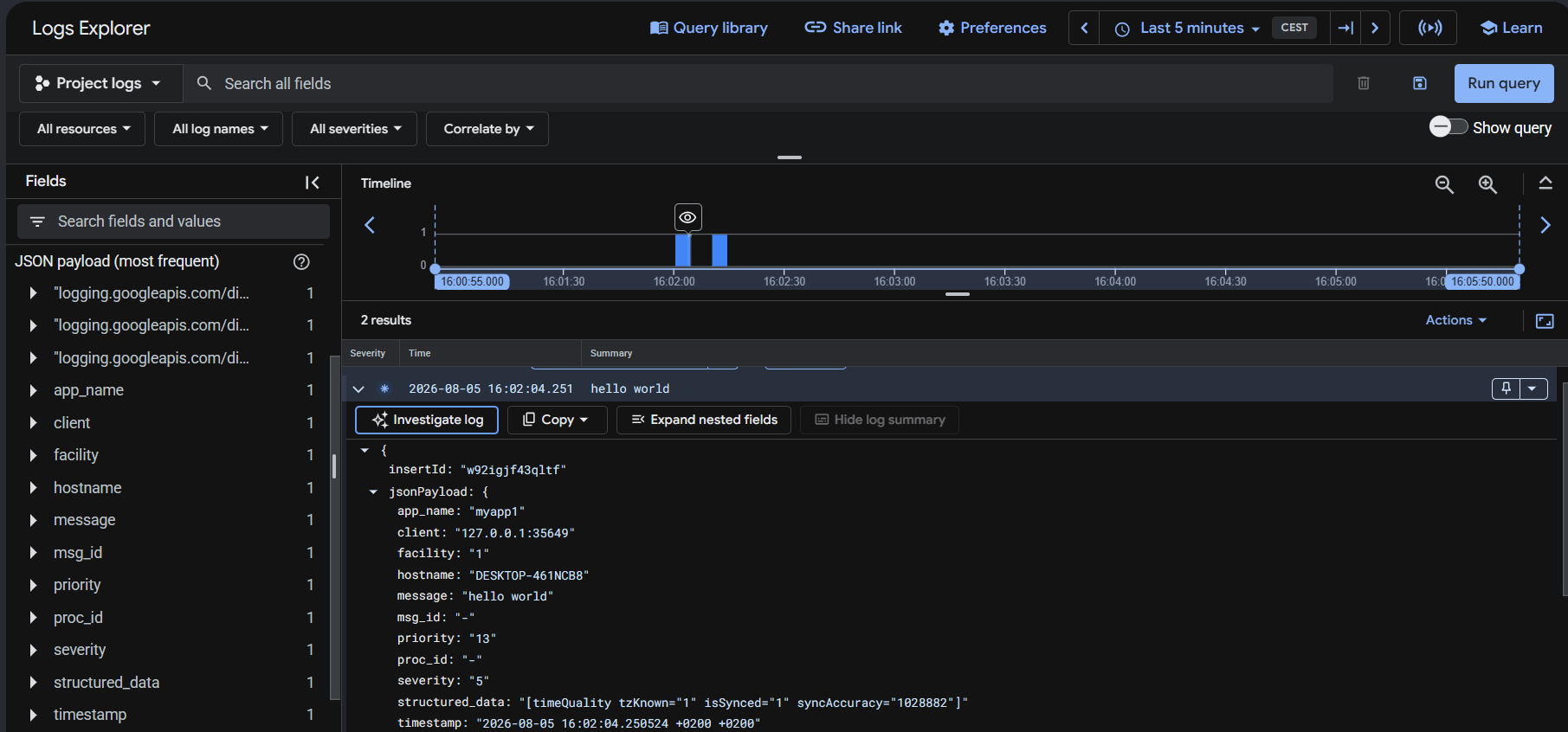
The fields of the log record are sent as the jsonPayload of the entry, and the
timestamp of the record is used as the timestamp of the entry.