AWS CloudWatch
Introduction
Amazon CloudWatch Logs centralizes the logs of your AWS resources. FlowG can send its log records to a CloudWatch log stream, so they can be queried with Logs Insights, or used to trigger metric filters and alarms.
Setting up CloudWatch Logs
FlowG writes to an existing log stream, it does not create it. Create the log group and the log stream first:
aws logs create-log-group --log-group-name flowg

aws logs create-log-stream \
  --log-group-name flowg \
  --log-stream-name logs
Then, create an IAM user for FlowG:
aws iam create-user --user-name flowg
Attach a policy allowing it to write to that stream:
{
  "Version": "2012-10-17",
  "Statement": [
    {
      "Effect": "Allow",
      "Action": ["logs:PutLogEvents"],
      "Resource": "arn:aws:logs:eu-west-3:123456789012:log-group:flowg:log-stream:logs"
    }
  ]
}
aws iam put-user-policy \
  --user-name flowg \
  --policy-name flowg-cloudwatch-logs \
  --policy-document file://flowg-cloudwatch-logs.json
- Change
eu-west-3to your region if different. - Replace
123456789012with your AWS account ID.
Finally, create an access key for that user:
aws iam create-access-key --user-name flowg
The command returns the AccessKeyId and the SecretAccessKey that FlowG will
use to authenticate.
The secret access key is only displayed once, at creation time.
Setting up the FlowG pipeline
First, let's create an "AWS CloudWatch Forwarder" named cloudwatch, with the
following configuration:
Then, create a pipeline that forwards logs received via Syslog to the
cloudwatch forwarder:
And that's it!
Testing
You can test the setup by sending a log to the pipeline using the logger
command:
logger -n localhost -P 5514 -t myapp1 'hello world'
You can then read the log events back with:
aws logs tail flowg --follow
Or find them in the
CloudWatch console,
under "Log groups" > flowg > logs.
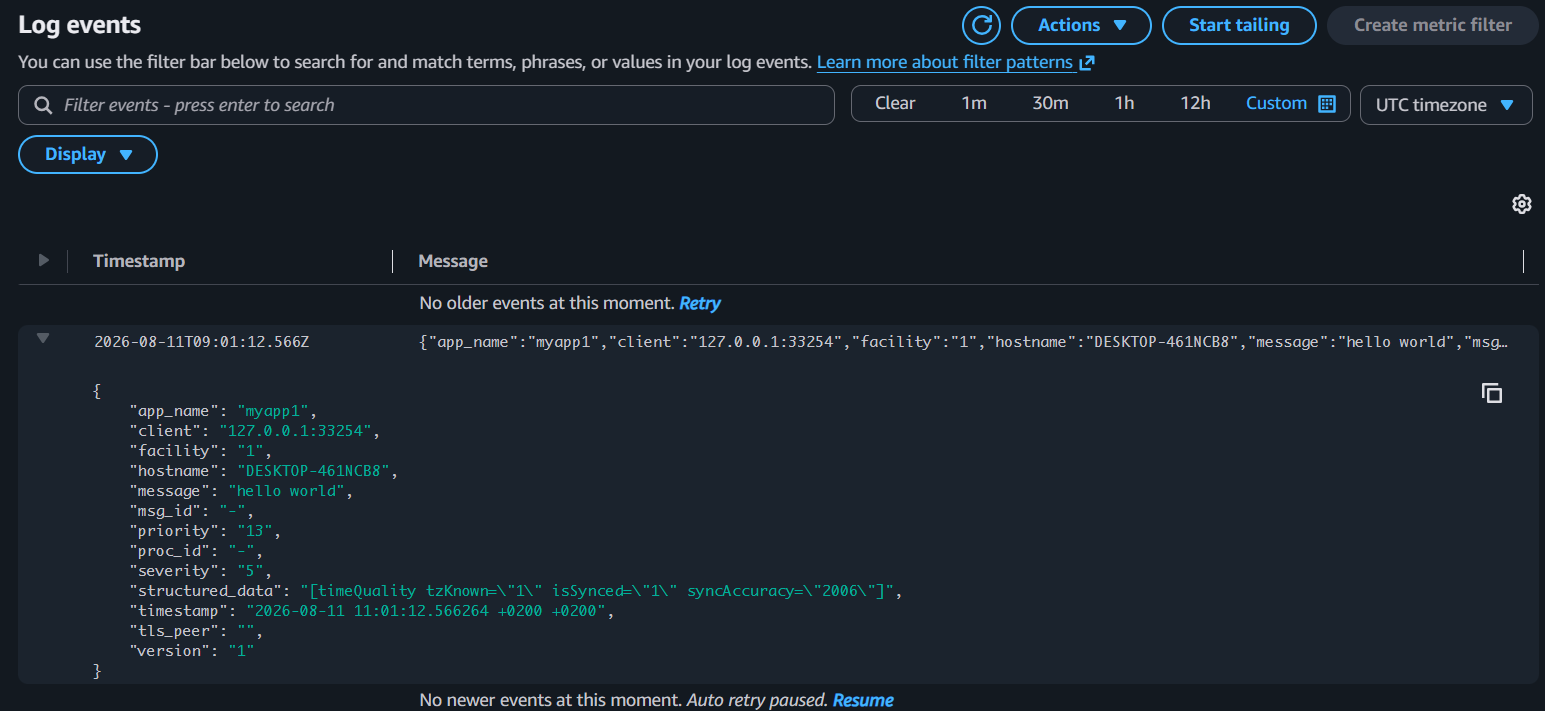
The fields of the log record are sent as a JSON object in the message of the log event, and the timestamp of the record is used as the timestamp of the event.