Installation
From Prebuilt Binaries
Go to the latest release page and download the archive corresponding to your Operating System and architecture, then:
tar xvf flowg-${VERSION}-${OS}-${ARCH}.tar.gz
sudo install -m 755 ./bin/flowg-server /usr/local/bin/flowg-server
Adjust the VERSION, OS and ARCH variables to the archive you
downloaded.
Then, start the server with:
flowg-server
For more informations about the command line interface, please consult this document.
For more informations about the configuration, please consult this document.
From Sources
Requirements:
- Go 1.27+
- C Toolchain
- Rust and Cargo (edition 2021)
- NodeJS
- gettext (for
msgcat)
First fetch the source code:
git clone https://github.com/link-society/flowg
cd flowg
Then run the build system:
go install github.com/go-task/task/v3/cmd/task@latest
task build:all
sudo install -m 755 ./bin/flowg-server /usr/local/bin/flowg-server
Then start the server like you would do with prebuilt binaries.
Using Docker
docker run \
  -p 5080:5080/tcp \
  -p 9113:9113/tcp \
  -p 5514:5514/udp \
  -v flowg-data:/data \
  linksociety/flowg:latest
Or if you are on ARM:
docker run \
  -p 5080:5080/tcp \
  -p 9113:9113/tcp \
  -p 5514:5514/udp \
  -v flowg-data:/data \
  linksociety/flowg:latest-linux-arm
The container runs as the non-root user 10001:10001. A named volume
(-v flowg-data:/data, as shown above) inherits the image's ownership and works
out of the box. If you instead bind-mount a host directory
(-v /srv/flowg:/data), run the container as the user that owns that directory
with --user, otherwise the server can't create its data directories on first
boot:
docker run \
  --user "$(id -u):$(id -g)" \
  -p 5080:5080/tcp \
  -p 9113:9113/tcp \
  -p 5514:5514/udp \
  -v /srv/flowg:/data \
  linksociety/flowg:latest
On Kubernetes, the bundled Helm chart already sets fsGroup: 10001 on the pod,
so a freshly provisioned PersistentVolumeClaim is made writable automatically.
To size the container (CPU, memory, GOMEMLIMIT) for your log throughput, see
Tuning.
Using Kubernetes
If you want to install FlowG in Kubernetes, either in a single-node installation with BadgerDB as a backend or with FoundationDB, we provide Helm charts you can use.
See more on Advanced Configuration / Kubernetes.
Security considerations
By default, the Syslog endpoint is open to everyone. If that behavior is undesirable, you can:
Configure Client certificate authentication
By using the Syslog protocol tcp+tls instead of udp (the default), you can
require Client certificate authentication:
1) Create a configuration file config.hcl:
services {
  syslog {
    protocol = "tcp"

    tls {
      cert = "/path/to/cert.pem"
      key  = "/path/to/cert.key"
      auth = true
    }
  }
}
2) Start the server with the configuration file:
flowg-server --config config.hcl
Configure allowed origins
Otherwise, you can restrict which IP address (or range) will be allowed:
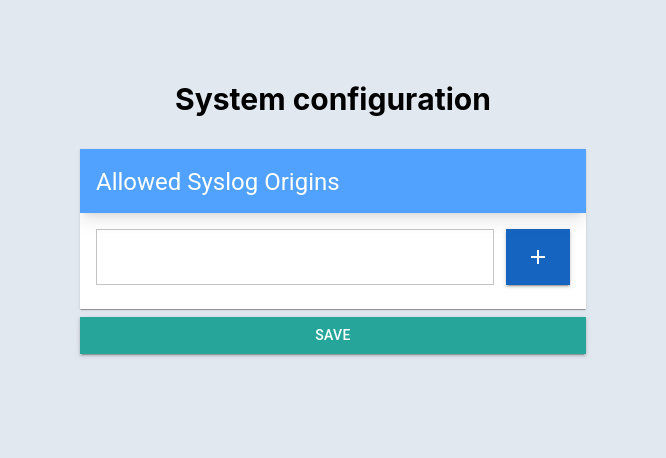
Go to Settings > System Configuration > Allowed Syslog Origins and add IPs
Next Steps
Once deployed, FlowG creates a default pipeline and a default account with
the credentials root / root.
You now have access to:
- The WebUI at http://localhost:5080
- The API documentation at http://localhost:5080/api/docs
- The Syslog endpoint at udp://localhost:5514
- The Management API at http://localhost:9113:
/health: health check, always return200 OK/metrics: Prometheus Exporter